
The shopper is still typing, and the product is already there.
Someone typing into the search box doesn’t want to read a results list, they want to see the product. Under the search box, matches appear while they type, with picture, name and price — item numbers included — and one click takes them to the product page.
WooCommerce plugin · OmniBit add-on
Let’s talk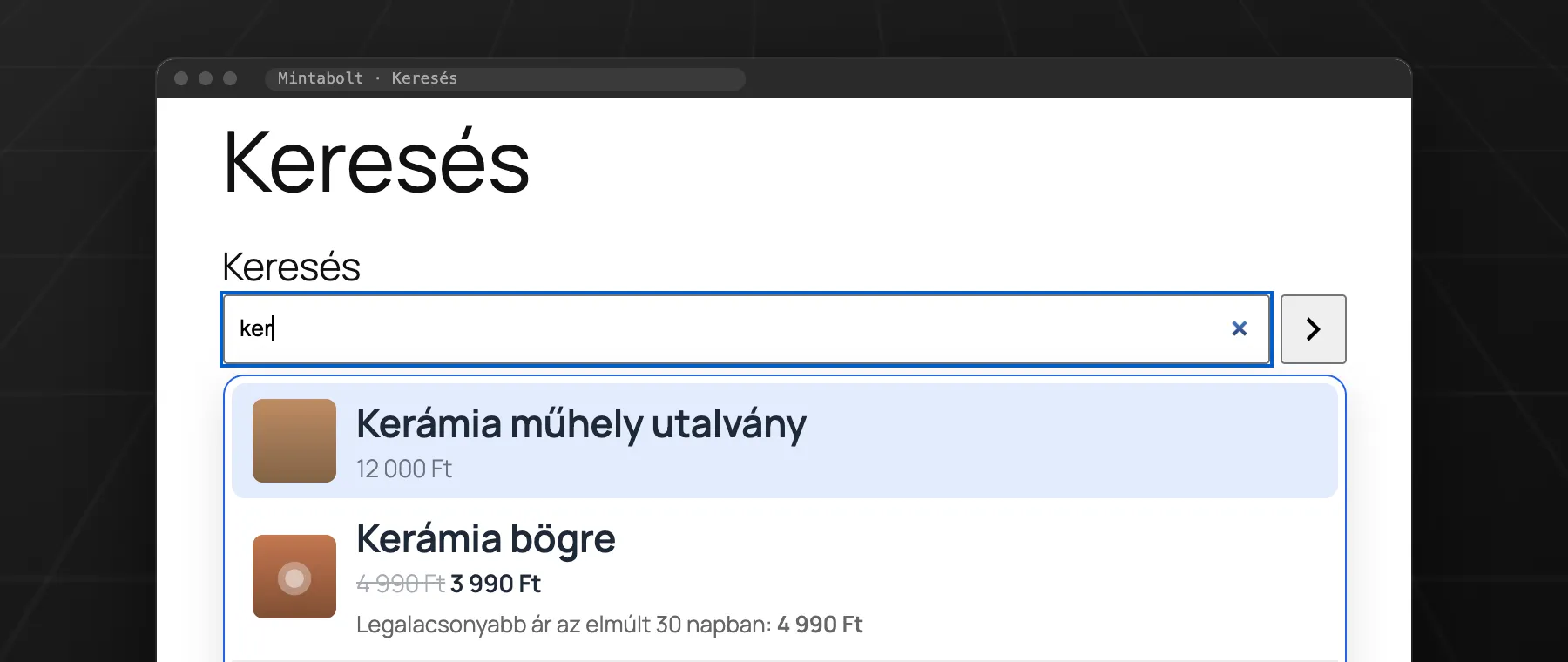
One step closer to the product
Search loses the shopper where they have to wait for a new page and then click through once more.
How it works now
The shopper types a word, presses enter, waits for the results page and clicks on from there.
Even the regular customer who knows the item number goes through the same loop.
A typo or a wrong guess means starting over.
How it works with this
While typing, products appear right under the search box, with photo and price.
Typing an item number puts the matching product at the top of the list.
One click and they are on the product page — or one line below, the full results list.
What the shopper sees
Picture, name, price
Every suggestion shows a small photo, the product name and its price. If the product is on sale, the old price appears struck through next to the new one.
Searches by item number too
Matches by name come first, followed by products found by item number. Item numbers of variations work as well: the shopper gets the main product.
From two letters, instantly
From two typed characters the list appears as they type, with up to six suggestions. A link then leads to the full results page.
Hidden products stay hidden
Whatever you excluded from search is not shown in the list either. If you hide out-of-stock products in WooCommerce, they do not appear.
Keyboard-friendly
The arrow keys move through the suggestions, enter opens the highlighted one, esc closes the list. It also works with a screen reader.
Searches without JavaScript too
If the add-on does not run in the browser for some reason, the search box still takes the shopper to the usual results page.
What it needs
Let’s look at your shop
Tell us what search you use today, and we will show you how live search would look in it.